Desktops & window managers
On Linux, the way your screen looks and behaves is a choice, not a given. This page compares the full desktops (GNOME, KDE Plasma, Xfce) with the lean, keyboard-driven tiling window managers (i3, awesome, dwm, bspwm, Qtile), so you can find the one that fits how you work.
You met desktop environments briefly in Level 1. The tiling sections assume you're comfortable with the terminal and editing text files (Level 2).
The words explained
| Word | What it means |
|---|---|
| Window manager (WM) | The program that decides where windows go, how big they are, and how you move between them. Every graphical Linux system has one. |
| Desktop environment (DE) | A complete package: a window manager plus a panel/taskbar, menus, settings app, file manager, notifications, lock screen and so on, all designed to work together. |
| Floating (stacking) | Windows sit on top of each other and you move and resize them with the mouse, as on Windows and macOS. |
| Tiling | Windows never overlap. They automatically share the screen like tiles on a floor, and you control them mostly with the keyboard. |
| Compositor | Draws the final picture on screen and adds effects like transparency, shadows and smooth animations. On Wayland, the window manager is the compositor. |
| Workspace | A separate virtual screen. Keep e-mail on 1, the browser on 2, work on 3, and jump between them with a key. |
| Mod key | The key that tiling WM shortcuts start with, usually Super (the Windows key) or Alt. |
A desktop environment is a fully furnished house. A window manager is just the part that arranges the furniture. With a bare window manager, you choose and bring every other piece yourself: the panel, the app launcher, the notifications.
Floating vs tiling
Here are three ways a window manager can arrange your windows:
You place every window. Windows overlap.
You decide where the next window splits.
(main window)
A layout places windows automatically.
| Floating | Tiling | |
|---|---|---|
| Learning curve | None if you've used Windows or macOS | A week or two of learning shortcuts |
| Mouse or keyboard? | Mostly mouse | Mostly keyboard |
| Screen space | Windows hide each other | Every pixel is used, nothing hidden |
| Speed | Fine for most people | Very fast once learned, with no reaching for the mouse |
| Memory use | Moderate to high (full desktop) | Very low (often under 100 MB for the WM itself) |
| Setup | Works out of the box | You configure it yourself in a text file |
| Great for | Everyone, especially beginners | Programmers, sysadmins, terminal lovers, small or old laptops |
The line between them is blurry. Every tiling WM can make a window float (handy for dialog boxes), and GNOME, KDE and Xfce can all snap windows into halves or tiles.
X11 and Wayland
Below every desktop sits a display server, the layer that talks to the screen, keyboard and mouse. Linux has two:
- X11 (Xorg): the old standard from the 1980s. Very compatible, but showing its age.
- Wayland: the modern replacement. It's smoother, more secure, and better with mixed-resolution and high-resolution screens. It's now the default on GNOME, KDE Plasma, Fedora and Ubuntu.
This matters for window managers: i3, dwm, bspwm and awesome only run on X11. Each has a Wayland "cousin" if you want to move on:
| If you like… (X11) | Try on Wayland |
|---|---|
| i3 | Sway: a near drop-in replacement that reads almost the same config file |
| dwm | dwl: dwm's ideas rewritten for Wayland, also configured in C |
| bspwm / awesome | river, or Hyprland (animated, highly customisable; used by Omarchy) |
| Qtile | Qtile itself: it runs on both X11 and Wayland |
| Something new | niri: windows sit on an endless horizontal strip you scroll through |
$ echo $XDG_SESSION_TYPE
wayland
Comparison table
| Name | Type | Runs on | Configured with | Difficulty | Best for |
|---|---|---|---|---|---|
| GNOME | Full desktop, floating | Wayland | Settings app, extensions | Easy | Clean, modern, distraction-free |
| KDE Plasma | Full desktop, floating + built-in tiling | Wayland (X11 being phased out) | System Settings (huge) | Easy | Windows switchers, people who love tweaking |
| Xfce | Full desktop, floating, lightweight | X11 (Wayland in progress) | Settings Manager | Easy | Older or low-powered computers |
| i3 | Tiling (manual) | X11 | Plain text file | Medium | Your first tiling WM |
| awesome | Dynamic tiling + floating | X11 | Lua code | Harder | People who want to program their desktop |
| dwm | Dynamic tiling | X11 | C source code, then recompile | Harder | Minimalists who like C |
| bspwm | Tiling (binary splits) | X11 | Shell script + sxhkd for keys | Harder | Shell scripters, "ricers" (desktop customisers) |
| Qtile | Dynamic tiling | X11 and Wayland | Python code | Medium | Python users |
Full desktops
These work out of the box, have graphical settings for everything, and are what most distros ship by default.
GNOME Easy
The default on Ubuntu and Fedora. GNOME is clean and minimal, and it's built around one idea: press Super. That opens the Activities overview, which shows all your windows and workspaces, with a search box for apps, files and settings.
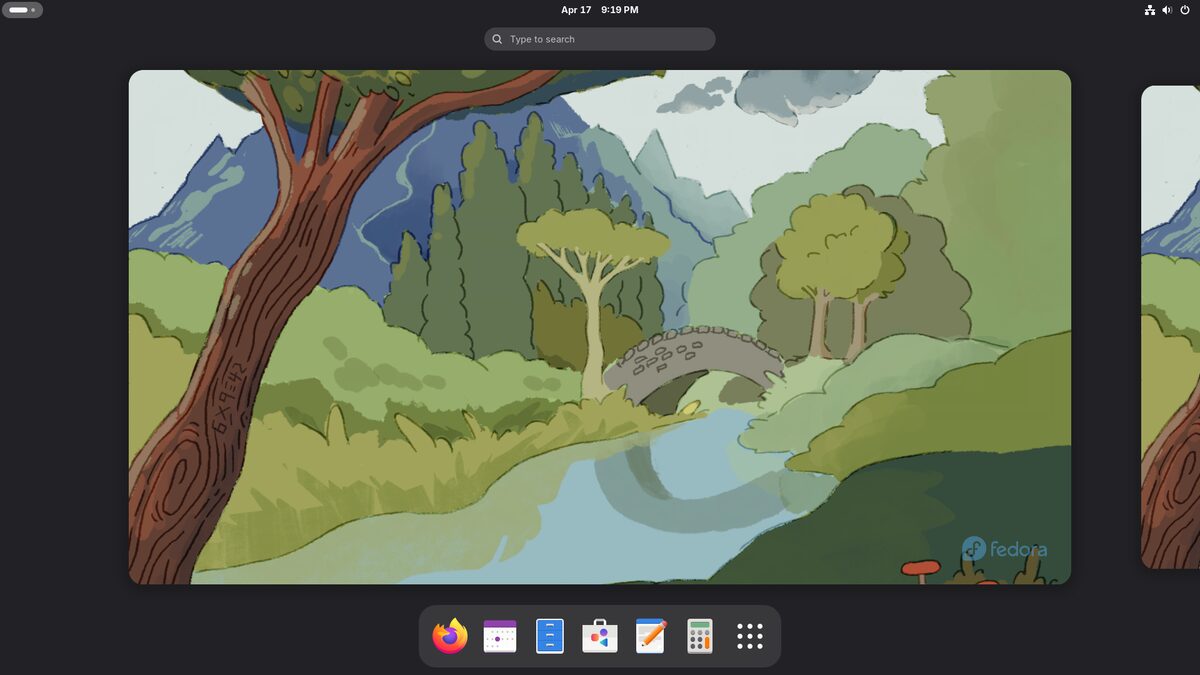

- Dynamic workspaces: a new empty one appears automatically when you use the last one.
- Plain GNOME (e.g. on Fedora) has no desktop icons or minimise button. Both can be added with extensions or GNOME Tweaks. Ubuntu adds them for you.
- Extensions add features: install the Extension Manager app, or visit extensions.gnome.org. Popular ones add a dock, a classic app menu or tiling (e.g. Tiling Shell).
- Basic tiling is built in: Super+←/→ snaps a window to half the screen.
KDE Plasma Easy
Out of the box it looks a lot like Windows: a taskbar at the bottom and an app menu in the corner. Underneath, it's the most customisable desktop there is. Almost everything can be changed in System Settings.
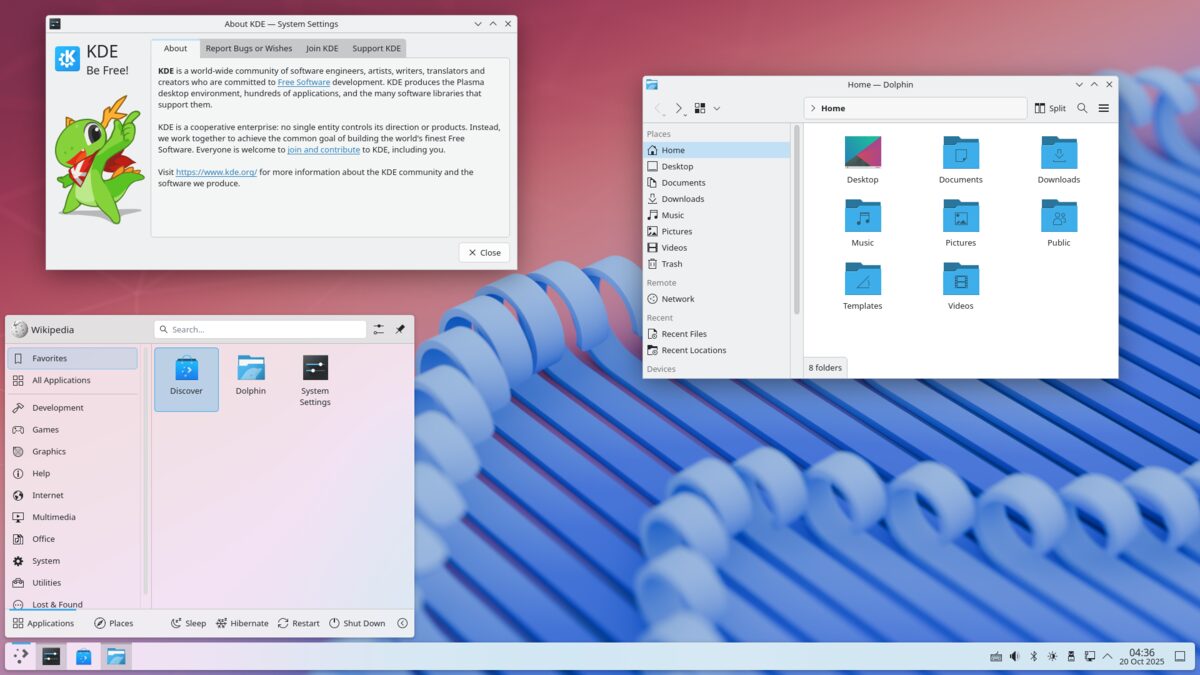

- Built-in tiling: press Super+T to design a tile layout, then hold Shift while dragging a window to drop it into a tile.
- Want full automatic tiling? KWin scripts such as Krohnkite or Polonium turn Plasma into a tiling desktop while keeping all its comforts.
- Widgets for the panel and desktop, and themes for everything, all from Get New… buttons in the settings.
- KRunner (Alt+Space): launch apps, do sums, convert units.
Xfce Easy
A traditional, lightweight desktop that has barely changed in years, which its fans count as a feature. Its window manager is called xfwm4, and the whole desktop is often referred to as "xfce4".
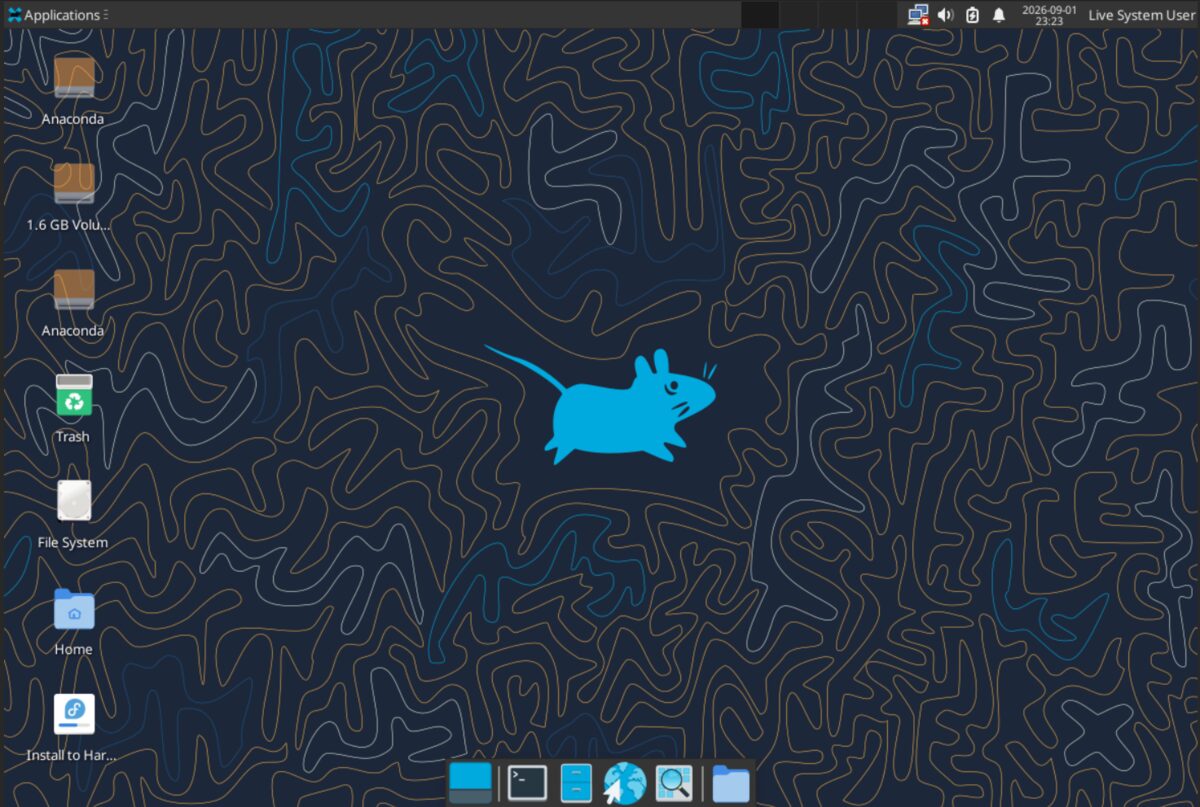

- Runs well on old computers and uses little memory.
- Panels can be placed anywhere and filled with plugins. Add the Whisker Menu for a modern searchable app menu.
- Drag a window to a screen edge or corner to tile it to half or a quarter of the screen. If this doesn't happen, turn it on in Window Manager Tweaks → Accessibility.
- Get it ready-made in Linux Mint Xfce, Xubuntu or Fedora Xfce.
Tiling window managers
Each section below shows the default shortcuts, where the config file lives, and a small example. Mod means the mod key (Super or Alt, see each WM).
A bare window manager starts with an empty screen: no panel, no menu, no icons. Read the shortcut table first, especially how to open a terminal and how to log out. If you get stuck, press Ctrl+Alt+F3 for a text console, log in, and run sudo systemctl restart display-manager to return to the login screen.
i3 Medium
The most popular tiling window manager and the usual first step. You decide where the next window appears by choosing to split horizontally or vertically. A window can also be shown as a tab or a stack. The i3 User's Guide is excellent.
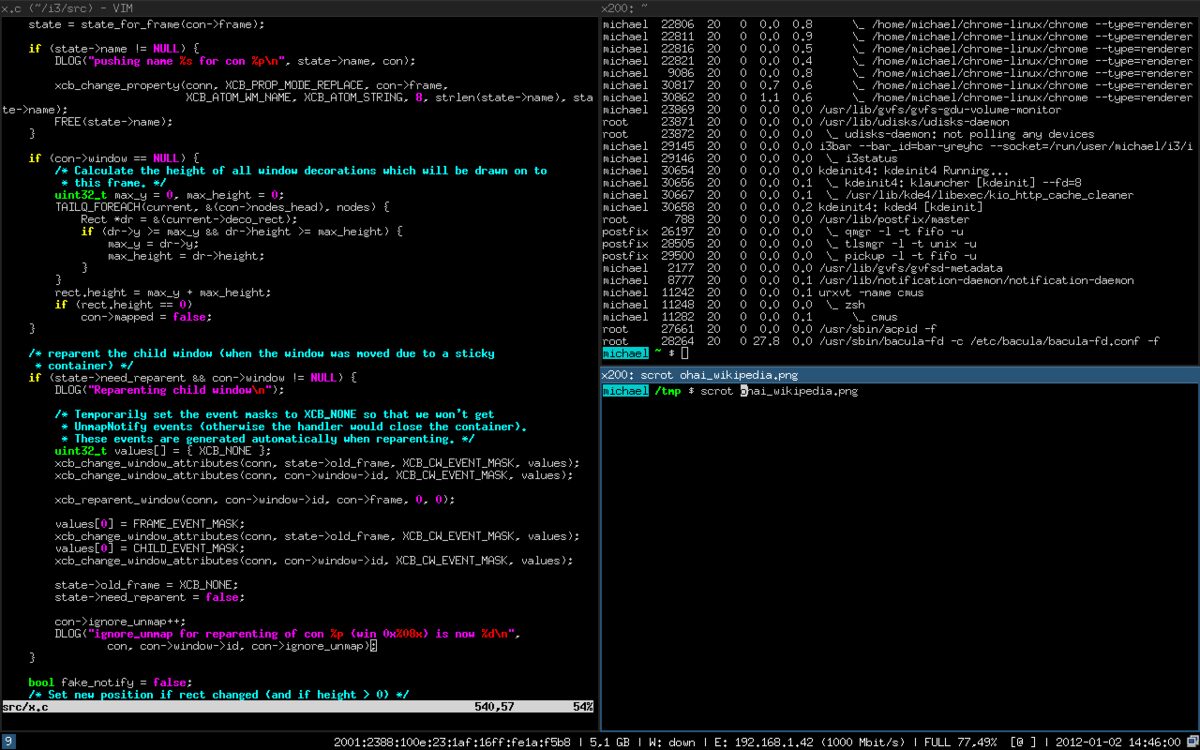

The first time you start i3, it offers to create a config file and asks whether your Mod key should be Super or Alt. Pick Super, so it doesn't clash with app shortcuts.
| Keys | What it does |
|---|---|
| Mod+Enter | Open a terminal |
| Mod+D | App launcher (dmenu, a bar at the top: type a name, press Enter) |
| Mod+Shift+Q | Close window |
| Mod+arrow keys (or J K L ;) | Move focus between windows |
| Mod+H / Mod+V | Next window opens beside / below the current one |
| Mod+W / S / E | Tabbed / stacked / back to split layout |
| Mod+F | Full screen |
| Mod+Shift+Space | Toggle floating for this window |
| Mod+1…9 | Go to workspace 1–9 (add Shift to move the window there) |
| Mod+Shift+R | Restart i3 (reloads the config, keeps your windows) |
| Mod+Shift+E | Log out |
Config file: ~/.config/i3/config. Example additions:
set $mod Mod4                                  # Mod4 = Super key
bindsym $mod+b exec firefox                    # Super+B opens Firefox
bindsym $mod+Shift+x exec i3lock -c 000000     # lock the screen
exec --no-startup-id nm-applet                 # Wi-Fi icon in the bar at startup
gaps inner 8                                   # small gaps between windows
for_window [class="pavucontrol"] floating enable   # this app always floats
awesome Harder
awesome is a framework as much as a window manager. It comes with a usable panel, menu and several layouts out of the box, and its whole configuration is a Lua program. That means you can make it do almost anything, including widgets that show the weather, battery and more.
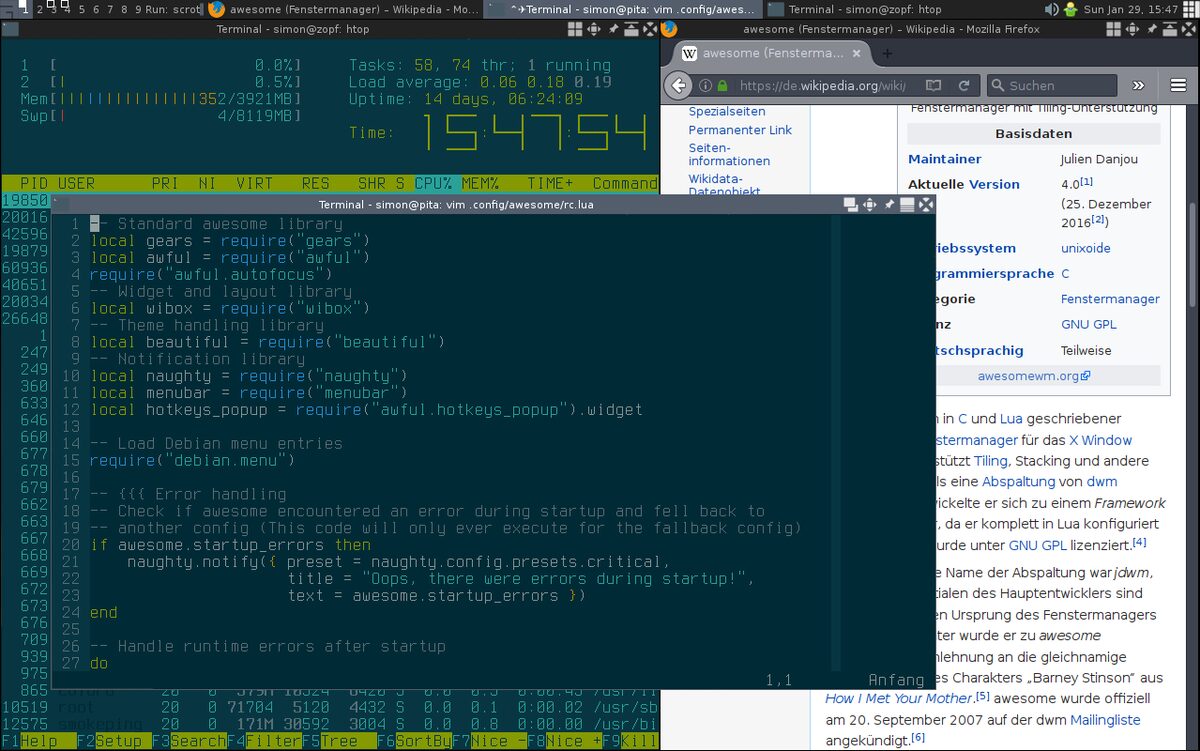
htop and vim, and Firefox. Here the windows are in a floating layout. Super+Space switches to a tiled one.Screenshot: Sbruder04, CC BY-SA 4.0, via Wikimedia Commons (resized).
Windows are placed automatically by the current layout (tile, fair, spiral, max, floating…). Workspaces are called tags. Mod is Super.
| Keys | What it does |
|---|---|
| Super+S | Show all shortcuts: start here |
| Super+Enter | Open a terminal |
| Super+R | Run prompt (type a program name) |
| Super+Shift+C | Close window |
| Super+J / K | Focus next / previous window |
| Super+Space | Switch to the next layout |
| Super+1…9 | View tag 1–9 |
| Super+Ctrl+R | Reload awesome |
| Super+Shift+Q | Log out |
Config file: start by copying the default, then edit your copy:
$ mkdir -p ~/.config/awesome
$ cp /etc/xdg/awesome/rc.lua ~/.config/awesome/rc.lua
-- in rc.lua (awesome 4.3): change the terminal, and add Super+B for Firefox inside the globalkeys list
terminal = "alacritty"
awful.key({ modkey }, "b", function () awful.spawn("firefox") end,
{ description = "open Firefox", group = "launcher" }),A typo in rc.lua makes awesome fall back to its default config. Check yours with awesome -k before reloading.
dwm Harder
dwm ("dynamic window manager") comes from the suckless project, whose goal is software that is tiny, simple and fast. dwm is only about 2,000 lines of C. There's no config file: you change config.h (the source code) and recompile. Extra features are added by applying patches from the dwm website.
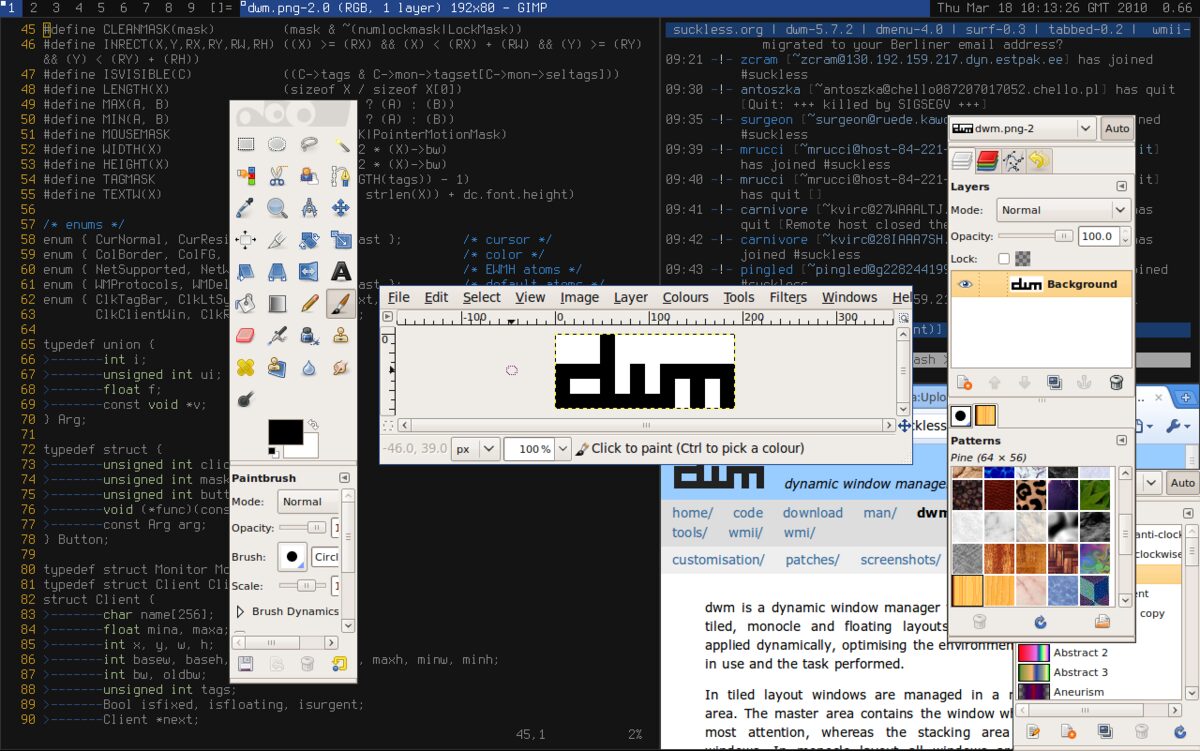

It uses a master and stack layout: one main window on the left (the "master"), and all others stacked on the right. Workspaces are tags. Mod is Alt by default.
| Keys | What it does |
|---|---|
| Alt+Shift+Enter | Open a terminal (st, the suckless terminal) |
| Alt+P | App launcher (dmenu) |
| Alt+Shift+C | Close window |
| Alt+J / K | Focus next / previous window |
| Alt+Enter | Swap the focused window into the master area |
| Alt+T / F / M | Tiled / floating / monocle (one window full-size) layout |
| Alt+1…9 | View tag 1–9 |
| Alt+B | Show/hide the bar |
| Alt+Shift+Q | Quit dwm |
Building it (needs a compiler and the X11 development files: base-devel libx11 libxft libxinerama on Arch, build-essential libx11-dev libxft-dev libxinerama-dev on Ubuntu):
$ git clone https://git.suckless.org/dwm
$ cd dwm
$ cp config.def.h config.h    # your personal copy of the settings
$ nano config.h
$ sudo make clean install     # rebuild after every change, then restart dwm
/* in config.h: use the Super key instead of Alt */
#define MODKEY Mod4MaskThe right side of dwm's bar shows text that you set with xsetroot. For example, show the time with a small loop in ~/.xinitrc: while true; do xsetroot -name "$(date '+%a %d %b %H:%M')"; sleep 30; done &
bspwm Harder
bspwm ("binary space partitioning window manager") arranges windows by splitting space in two, again and again, like cutting a sheet of paper in half, then cutting one half in half, and so on. It does just one thing: manage windows. Even keyboard shortcuts are left to a separate program, sxhkd. bspwm is a favourite of "ricers", people who make highly styled desktops.
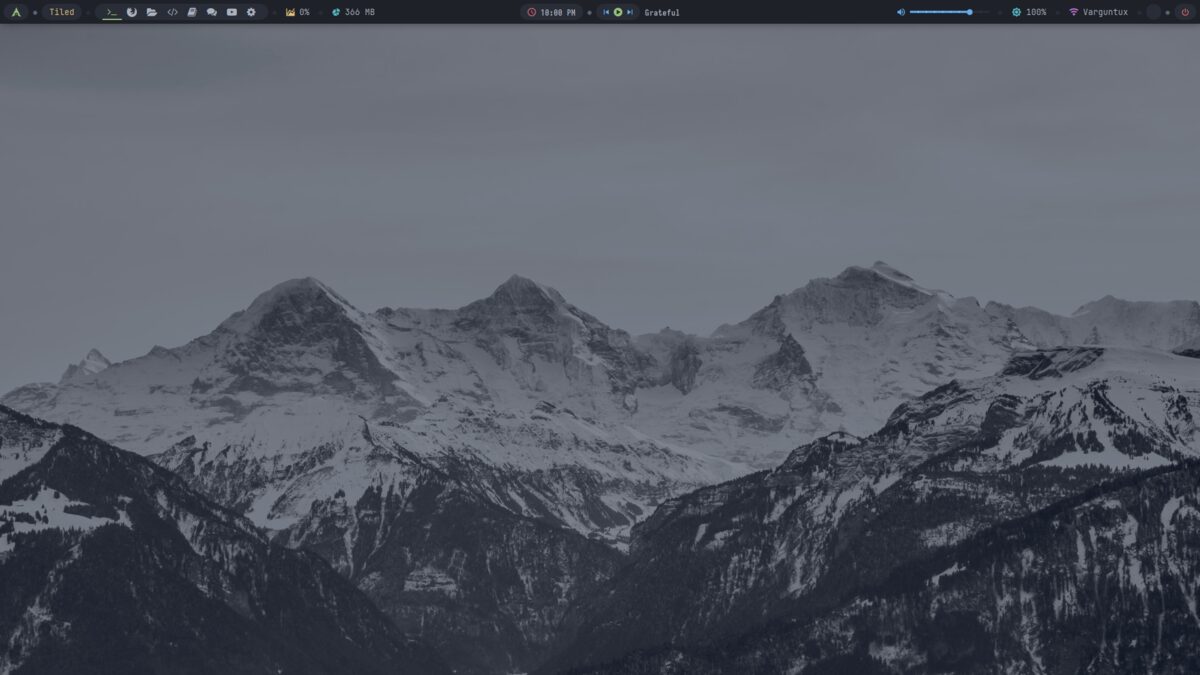

Both are configured with ordinary files:
$ mkdir -p ~/.config/bspwm ~/.config/sxhkd
$ cp /usr/share/doc/bspwm/examples/bspwmrc ~/.config/bspwm/
$ cp /usr/share/doc/bspwm/examples/sxhkdrc ~/.config/sxhkd/
$ chmod +x ~/.config/bspwm/bspwmrc        # bspwmrc is a shell script and must be executable
(The example files may be in a slightly different place on your distro. find /usr/share -name sxhkdrc will find them.)
The example sxhkdrc opens urxvt as its terminal, which you probably don't have. Edit that line to your terminal (e.g. alacritty, kitty) before logging in, or you'll have no way to open one.
| Keys (example sxhkdrc) | What it does |
|---|---|
| Super+Enter | Open a terminal |
| Super+Space | App launcher (dmenu) |
| Super+W | Close window |
| Super+H J K L | Focus left / down / up / right (add Shift to swap) |
| Super+M | Toggle monocle (one window full-size) |
| Super+1…0 | Go to desktop 1–10 (add Shift to move the window) |
| Super+Esc | Reload sxhkd (after editing shortcuts) |
| Super+Alt+Q / R | Quit / restart bspwm |
# in ~/.config/bspwm/bspwmrc (a shell script)
bspc config window_gap 12
bspc config border_width 2
bspc rule -a Pavucontrol state=floating

# in ~/.config/sxhkd/sxhkdrc: key on one line, command indented below
super + b
    firefox
Qtile Medium
Qtile is a tiling window manager written and configured in Python. If you know a little Python, it's one of the friendliest to customise. It comes with a built-in bar and widgets, several layouts, and it runs on both X11 and Wayland. Mod is Super.
There's no freely licensed Qtile screenshot we can show here, but the official Qtile screenshot gallery has many examples from users.
| Keys (default config) | What it does |
|---|---|
| Super+Enter | Open a terminal |
| Super+R | Run prompt in the bar |
| Super+W | Close window |
| Super+H J K L | Move focus |
| Super+Tab | Next layout |
| Super+F | Full screen |
| Super+1…9 | Go to group (workspace) 1–9 |
| Super+Ctrl+R | Reload the config |
| Super+Ctrl+Q | Log out |
Config file: ~/.config/qtile/config.py. If it doesn't exist, Qtile uses its built-in default. To start customising, copy default_config.py from Qtile's source (in libqtile/resources/) to that location.
# in config.py: add Super+B for Firefox
keys.append(Key([mod], "b", lazy.spawn("firefox"), desc="Open Firefox"))
$ qtile check # check your config for errors before reloadingInstalling & switching
You can install several desktops and window managers side by side. On the login screen, choose which one to start. Look for a gear icon (GNOME's login screen, bottom-right after picking your user) or a "Session"/"Desktop" menu (KDE's and Mint's login screens).
Arch (pacman) | Ubuntu / Mint (apt) | Fedora (dnf) | |
|---|---|---|---|
| GNOME | gnome | Default on Ubuntu | Default on Fedora |
| KDE Plasma | plasma-meta | kubuntu-desktop | dnf group install kde-desktop |
| Xfce | xfce4 xfce4-goodies | xubuntu-desktop | dnf group install xfce-desktop |
| i3 | i3-wm i3status dmenu | i3 | i3 |
| awesome | awesome | awesome | awesome |
| dwm | Build from source (above), or AUR | dwm (or build from source) | Build from source (not packaged) |
| bspwm | bspwm sxhkd | bspwm sxhkd | bspwm sxhkd |
| Qtile | qtile | Not in the repositories. See Qtile's install guide | qtile |
Installing a second full desktop (say KDE on top of Ubuntu's GNOME) works, but it brings hundreds of packages and you end up with two of everything: two settings apps, two file managers, mixed themes. If you want a different desktop for good, it's usually cleaner to install the matching edition: Kubuntu, Xubuntu, Fedora KDE, Linux Mint Xfce and so on. Lightweight window managers don't have this problem.
Install i3 next to your current desktop. Log out, pick i3 at the login screen, and spend 15 minutes with the shortcut table above. If you don't like it, log out and pick your old desktop again. Nothing is lost.
Tiling survival kit
A bare window manager doesn't come with the things a desktop gives you for free. Here's what most people add:
| You need | Popular choices | Why |
|---|---|---|
| Terminal | alacritty, kitty, foot (Wayland) | Your main tool |
| App launcher | dmenu, rofi | There's no start menu. rofi also does window switching. |
| Status bar | i3status, i3blocks, polybar, waybar (Wayland) | Clock, battery, Wi-Fi, volume |
| Notifications | dunst, mako (Wayland) | Otherwise notifications simply don't appear |
| Wallpaper | feh, nitrogen | Otherwise the background is plain black |
| Compositor (X11) | picom | Transparency and shadows, and it stops video "tearing" |
| Network icon | nm-applet | Click to choose Wi-Fi (or use nmtui in a terminal) |
| Password prompts | A polkit agent, e.g. polkit-gnome or lxqt-policykit | Without one, graphical apps can't ask for your admin password and fail silently |
| Screen lock | i3lock, slock, swaylock (Wayland) | Bind it to a key |
| Screenshots | flameshot, maim, grim (Wayland) | Bind Print Screen yourself |
| Volume & brightness keys | pactl / wpctl, brightnessctl | Media keys do nothing until you bind them |
Your configuration files (~/.config/i3/config and friends) are called dotfiles. Keep them in a Git repository so you can restore your whole setup on a new computer in minutes. People share theirs on GitHub, which is a great place for ideas. The r/unixporn community (it's about desktop screenshots) is full of inspiration.
Which should I pick?
| If you… | Try |
|---|---|
| Are new to Linux, or coming from Windows | KDE Plasma or Cinnamon (Linux Mint) |
| Like a clean, simple, Mac-like experience | GNOME |
| Have an old or slow computer | Xfce, or i3 if you're curious about tiling |
| Want to try tiling with the least effort | KDE's built-in tiling or a GNOME tiling extension, then i3 |
| Know Python | Qtile |
| Want to program every detail | awesome (Lua) |
| Want the smallest, simplest possible thing | dwm |
| Love shell scripts and custom themes | bspwm |
| Want a modern Wayland tiling setup, ready-made | Sway (i3-style) or Hyprland via Omarchy |
There's no wrong answer. Many people try a few over the years, and since they all run the same Linux apps, switching costs nothing but a little learning.